Session Replay
Session Replay captures browser sessions as interactive replays viewable in your Browserless dashboard. It uses RRWeb technology to record DOM mutations, mouse movements, clicks, scrolling, keyboard input, console logs, and network requests. The result is a lightweight, high-fidelity recording you can play back at any speed. This feature requires a paid plan and is not to be confused with Screen Recording, which captures WebM video files returned directly to your code.
To enable it, add replay=true to your WebSocket connection string. Recording starts automatically on connect and stops when you call Browserless.stopSessionRecording or close the browser.
- A paid Browserless plan (Prototyping, Starter, Scale, or Enterprise) — Session Replay is not available on the free plan
- A Browserless API token from your account dashboard
- Node.js installed (for the code examples below)
- Install the required npm package:
npm install puppeteer-core
Recording a Session
Connect to Browserless with Replay Enabled
Connect to Browserless and enable session replay by adding the
replay=truequery parameter to your connection URL. Recording starts automatically upon connection.- Puppeteer
- Playwright
import puppeteer from 'puppeteer-core';

const browser = await puppeteer.connect({
  browserWSEndpoint: `wss://production-sfo.browserless.io?token=YOUR_API_TOKEN_HERE&timeout=300000&headless=false&replay=true`,
});
import { chromium } from 'playwright-core';
const browser = await chromium.connectOverCDP(
'wss://production-sfo.browserless.io?token=YOUR_API_TOKEN_HERE&timeout=300000&headless=false&replay=true'
);Perform Actions to Record
Create a page, navigate to your target website, and perform the actions you want to record. The recording captures all interactions on this page.
- Puppeteer
- Playwright
const page = await browser.newPage();
await page.goto("https://www.example.com", { waitUntil: "networkidle0" });

const sleep = (ms) => new Promise((res) => setTimeout(res, ms));

// Example: Random mouse movements for demonstration
const randomMouseMovements = async (page, moves = 20) => {
  const viewport = page.viewport() || { width: 1280, height: 720 };
  for (let i = 0; i < moves; i++) {
    const x = Math.floor(Math.random() * viewport.width);
    const y = Math.floor(Math.random() * viewport.height);

    await page.mouse.move(x, y, {
      steps: 5 + Math.floor(Math.random() * 10),
    });
    await sleep(100 + Math.random() * 300);
  }
};

await randomMouseMovements(page, 2);
await sleep(6000);
const [context] = await browser.contexts();
const page = await context.newPage();
await page.goto("https://www.example.com", { waitUntil: "networkidle" });
const sleep = (ms) => new Promise((res) => setTimeout(res, ms));
// Example: Random mouse movements for demonstration
const randomMouseMovements = async (page, moves = 20) => {
const viewport = page.viewportSize() || { width: 1280, height: 720 };
for (let i = 0; i < moves; i++) {
const x = Math.floor(Math.random() * viewport.width);
const y = Math.floor(Math.random() * viewport.height);
await page.mouse.move(x, y);
await sleep(100 + Math.random() * 300);
}
};
await randomMouseMovements(page, 2);
await sleep(6000);Stop Recording and Clean Up
Create a CDP session, stop the session recording, and close the browser connection. When you call
Browserless.stopSessionRecording, the recorded data uploads automatically to your Browserless account for viewing in the dashboard.- Puppeteer
- Playwright
const cdp = await page.createCDPSession();

// Stop the recording - data uploads automatically
await cdp.send("Browserless.stopSessionRecording");
await browser.close();
const cdpSession = await context.newCDPSession(page);
// Stop the recording - data uploads automatically
await cdpSession.send("Browserless.stopSessionRecording");
await browser.close();Alternative: Close Without Explicit StopIf you close the browser without calling
Browserless.stopSessionRecording, the recording still saves automatically. Explicitly stopping the recording ensures all data flushes before disconnection.
What Gets Recorded
Session Replay captures the following data:
DOM Events: All visual changes to the page including element mutations, style changes, and layout shifts, recorded using RRWeb's snapshot technology.
User Interactions: Mouse movements, clicks, scrolling, and keyboard input with precise timing for accurate playback.
Text input values are masked while an interactive LiveURL viewer is connected, so credentials and one-time codes entered during a human handoff don't appear in the replay. After the last interactive viewer disconnects, the standard masking rules apply again. See What's masked.
Console Logs: All console output (log, warn, error, info) with timestamps, making it easy to correlate visual events with application state.
Network Requests: HTTP requests and responses, helping you understand data flow during the session.
Viewing Replays
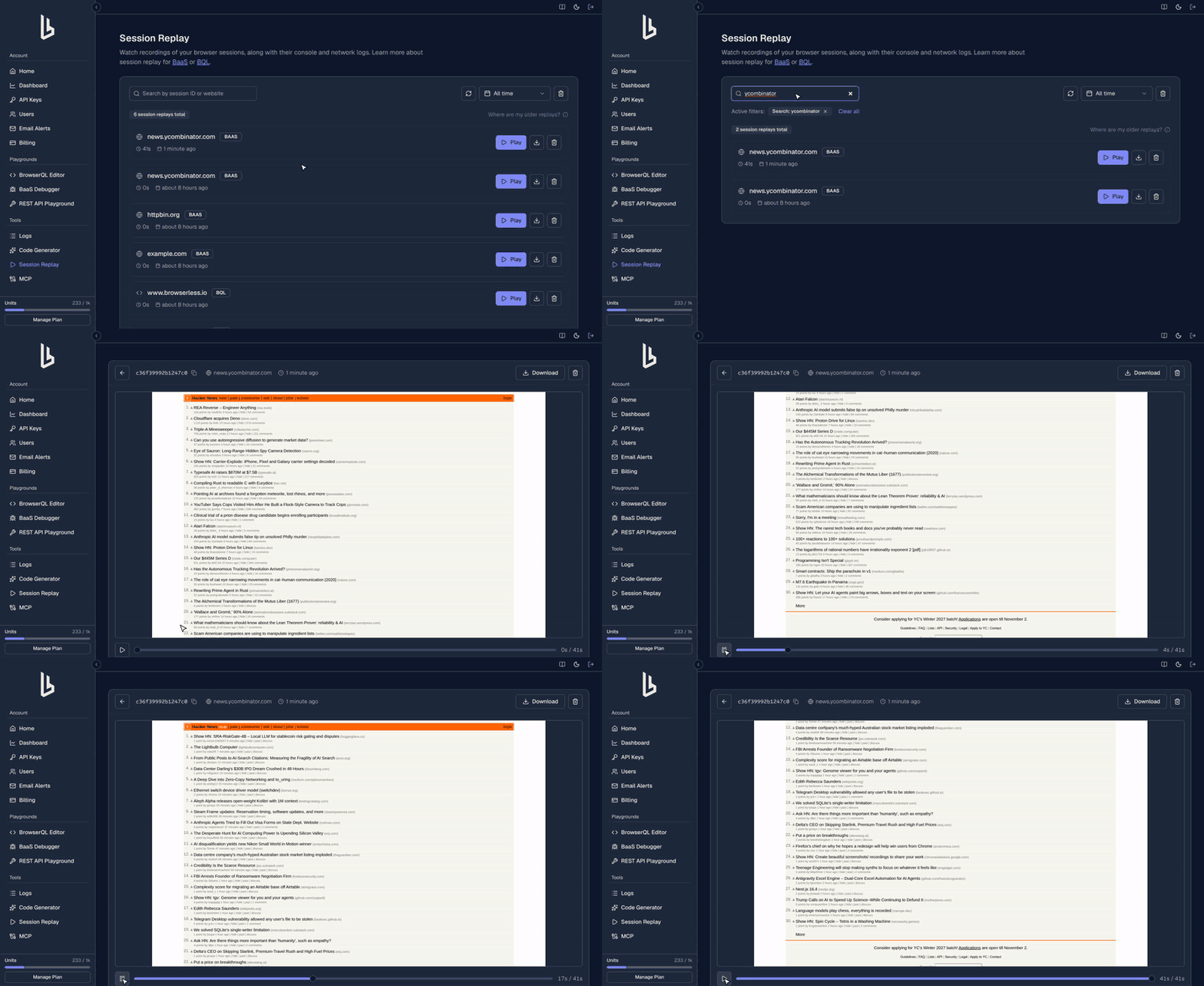
After your session ends, the replay uploads automatically to your Browserless dashboard. Navigate to the Session Replay section to find your recorded sessions. Each replay includes a timeline showing all captured events, console logs, and network activity. You can play back the session at different speeds and jump to specific moments.
Retention and privacy
How long replays are kept
Replays are kept for 30 days from when Browserless registers them. Each replay has its own retention period, so recording a new session doesn't extend older ones.
- An hourly cleanup deletes expired replays, removing both the dashboard entry and the stored recording.
- Failed deletions are retried, so a replay can outlast the 30-day mark. Recordings stored before this retention policy took effect can take longer to clear from storage.
- You can delete one replay or all of them from the dashboard. If storage is temporarily unavailable, the deletion fails instead of hiding a recording that may still exist.
What's masked
Replays mask sensitive input values, but masking is pattern-based, not a guarantee.
A field's value is always masked when:
- It's a password, email, or phone field.
- Its markup identifies it as a card number, security code, expiry date, email address, or password. Browserless checks the field's type,
autocompletevalue, name, ID, placeholder,data-testid, andaria-label. Visible label text isn't checked.
In any other text field, the value is masked once it looks like a card number (seven or more digits, or a run of 13 or more) or contains @. The first few digits of a card number typed into an unlabeled field can appear before masking starts.
All text inputs are fully masked while an interactive LiveURL viewer is connected, and after Browserless fills a stored credential.
These aren't masked:
- Other text fields, such as names and search boxes, so you can debug form flows.
- A short password or security code typed into a field with no recognizable type,
autocompletevalue, or name. - Checkboxes, radio buttons, and buttons.
- Text the page displays, such as a card number echoed on a confirmation screen. Masking only covers input values.
Sharing replays
Only the account that recorded a replay can request a link to it. The dashboard and the Browserless MCP server open replays through a signed link that expires after 15 minutes, and request a new link each time.
Until it expires, a signed replay link works for anyone who has it, without signing in. Treat it like a password and don't share it.
To share a replay, download it from the dashboard. Treat downloaded files as sensitive too: even with masking, a replay can contain page content, interactions, console output, and network activity. Only share them with people you trust.
For BrowserQL-specific Session Replay documentation, see Session Replay with BQL.
Navigation Handling
Session Replay handles page navigations automatically within your session. When the browser navigates to a new page, the recording system reinjects the RRWeb recorder and continues capturing events. All data from multiple page navigations aggregates into a single replay, giving you the complete user journey across different pages.
Limitations
- Cross-origin iframes may not be fully captured due to browser security restrictions.
- Very long sessions with high DOM activity may produce large replay files.
- Dynamic content loaded via WebGL or canvas may not reproduce perfectly in playback.
FAQ & Troubleshooting
Why am I getting a 403 Forbidden error?
Your API token is missing or expired. Pass it as a ?token= query parameter in the WebSocket or HTTP URL. Verify the token in your account dashboard.
My script works locally but fails on Browserless
Local browser settings may differ from the Browserless environment. Use launch parameters to match your local setup (viewport, user agent, timezone). See launch parameters for the full list.