Style the Live URL keyboard and dropdowns
Use CSS inside the remote page to resize and restyle the on-screen keyboard and dropdown menus. The Puppeteer and Playwright examples below keep your styles applied after navigation in the same tab, including links the viewer taps.
- A Browserless API token from your account dashboard
- A Puppeteer or Playwright session connected to Browserless
- Node.js with
puppeteer-coreorplaywright-coreinstalled - Familiarity with the Hybrid Automation guide
- A phone, tablet, or other touch-capable device (or touch emulation) to see the keyboard
How the keyboard and dropdowns are drawn
Browserless injects both widgets into the remote page and streams them to the viewer. CSS on your own page or the iframe that embeds the Live URL has no effect on them.
The keyboard appears when the viewer uses a touch-capable device (one that reports a coarse pointer or touch points) and taps a text, search, URL, phone, password, or email input or a text area. The dropdown replaces the native menu when the viewer opens a single-choice <select>. Its replacement exists in the remote page only while open.
Use emulateComponents: true, the default, to enable both widgets.
Where to apply your CSS
Register a script that runs in every new document before navigating and before calling Browserless.liveURL. Use page.evaluateOnNewDocument in Puppeteer or page.addInitScript in Playwright.
The script below adds a constructable stylesheet through document.adoptedStyleSheets. This works even on sites whose Content Security Policy blocks <style> tags. In contrast, page.addStyleTag and BrowserQL evaluate style only the current document: their styles are lost on the next navigation.
Override rules
- Start every selector with
html body. Browserless loads its default styles after yours, so a selector with equal specificity loses. - Dropdown
background-color,border/border-color, andfont-sizealso need!important. The first two are!importantin our defaults; font size is set inline from the<select>. Alternatively, setfont-sizeandfont-familyon the<select>itself, and the dropdown copies them. - If you change key height, row spacing, or padding, also set
top: auto; bottom: 0on the keyboard root. Otherwise its bottom rows go off-screen. Changing onlyzoomscales the whole keyboard and keeps it anchored. - Don't set
displayon.simple-keyboard, orposition,top,left, orz-indexon.cb-pvt-dropdown. Browserless sets those to show, hide, and place the widgets.
Selector reference
Prefix these selectors with html body in your overrides.
| Element | Selector | Notes |
|---|---|---|
| Keyboard root | .simple-keyboard | Also has .hg-theme-default |
| Keyboard row | .hg-row | Row spacing |
| Key | .hg-button | Key height, text, and colors |
| Character key | .hg-standardBtn | Letters, numbers, and symbols |
| Function key | .hg-functionBtn | Non-character keys |
| Specific function key | .hg-button-enter, .hg-button-bksp, .hg-button-space, .hg-button-shift | Enter, backspace, space, and shift |
| Specific character | [data-skbtn="q"] | One key |
| Pressed key | .hg-activeButton | Present while pressed |
| Press preview | .vk-key-popup | Popup above the pressed key |
| Open dropdown | div.cb-pvt-dropdown | Exists only while open |
| Dropdown option | .cb-pvt-option | Has data-value and data-text attributes |
| Highlighted option | .cb-pvt-selected | Current value; moves to the option under the pointer while hovering |
Styling examples
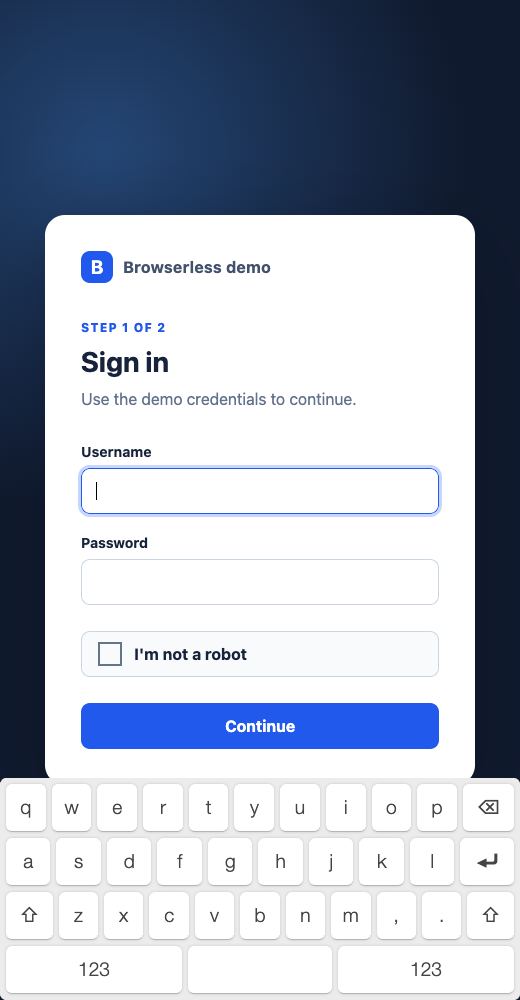
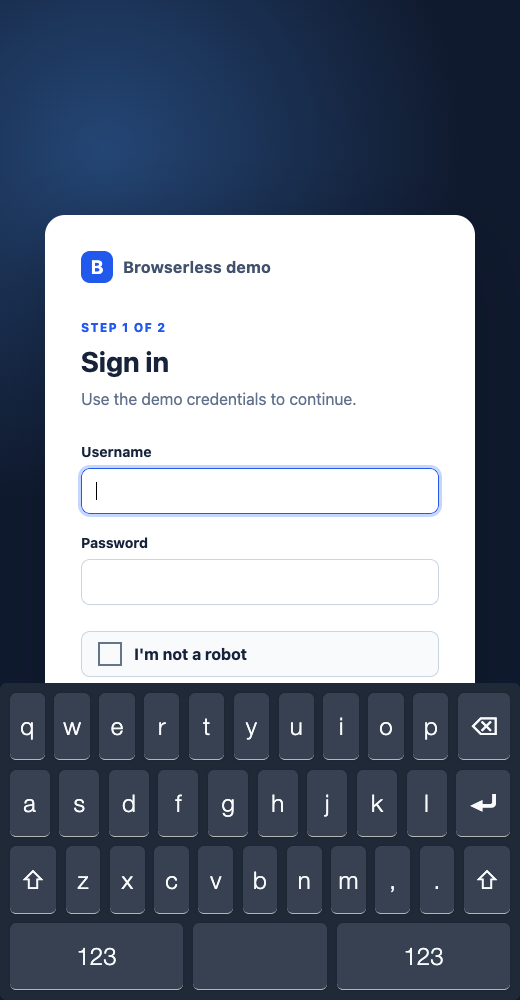
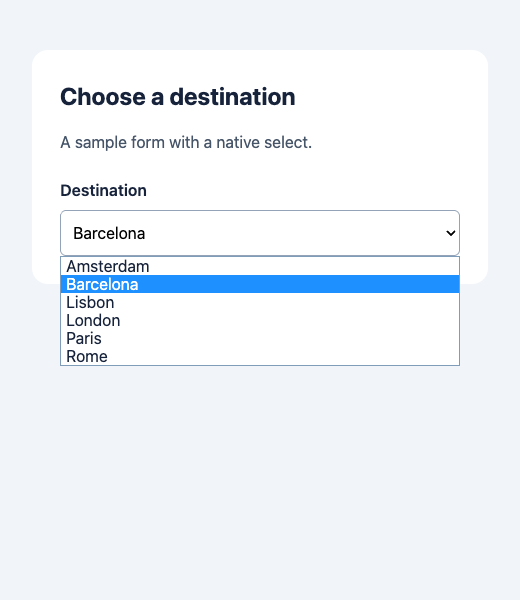
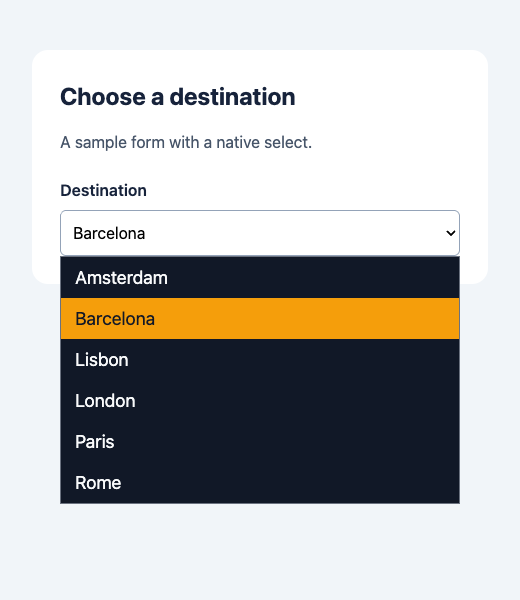
The CSS in the full example below changes the default light controls to a dark theme with taller keys and larger dropdown options. These screenshots show the widgets inside the remote page: the keyboard on a demo sign-in form, and the dropdown on a sample destination form.
- Keyboard
- Dropdown
Full example
Run either script, then open the printed Live URL on a touch-capable device. Follow Form Authentication and tap a text field to see the keyboard, or open Dropdown to see the replacement menu. Both examples request a five-minute browser session (timeout=300000) to leave time for navigation and setup before requesting a two-minute Live URL. Your plan's maximum session duration still limits the session, and the link cannot outlive its remaining time. When the link expires, the script closes the browser.
- Puppeteer
- Playwright
import puppeteer from 'puppeteer-core';

const LIVE_URL_CSS = `
/* Keyboard: dark theme, taller keys, anchored to the bottom */
html body .simple-keyboard.hg-theme-default {
  top: auto;
  bottom: 0;
  padding: 8px;
  background-color: #1f2937;
}
html body .simple-keyboard .hg-button {
  height: 56px;
  font-size: 20px;
  background: #374151;
  color: #f9fafb;
}
html body .simple-keyboard .hg-row:not(:last-child) {
  margin-bottom: 8px;
}
html body .simple-keyboard .hg-row .hg-button:not(:last-child) {
  margin-right: 8px;
}
/* Dropdown: dark list, larger text, amber highlight */
html body div.cb-pvt-dropdown {
  background-color: #111827 !important;
  border-color: #6b7280 !important;
  font-size: 18px !important;
}
html body div.cb-pvt-dropdown .cb-pvt-option {
  padding: 10px 14px;
  color: #f9fafb;
}
html body div.cb-pvt-dropdown .cb-pvt-option.cb-pvt-selected {
  background-color: #f59e0b;
  color: #111827;
}
`;

function applyLiveURLStyles(css) {
  const sheet = new CSSStyleSheet();
  sheet.replaceSync(css);
  document.adoptedStyleSheets = [...document.adoptedStyleSheets, sheet];
}

const browser = await puppeteer.connect({
  browserWSEndpoint: 'wss://production-sfo.browserless.io?token=YOUR_API_TOKEN_HERE&timeout=300000',
});
try {
  const page = await browser.newPage();
  await page.evaluateOnNewDocument(applyLiveURLStyles, LIVE_URL_CSS);
  await page.goto('https://the-internet.herokuapp.com/');
  const cdp = await page.createCDPSession();
  const { liveURL, error } = await cdp.send('Browserless.liveURL', { timeout: 120000 });
  if (error) throw new Error(error);
  const completion = new Promise((resolve) => cdp.once('Browserless.liveComplete', resolve));
  // Local testing only. In production, send the link to the person privately instead of logging it.
  console.log('Share this URL:', liveURL);
  await completion;
} finally {
  await browser.close();
}
import { chromium } from 'playwright-core';

const LIVE_URL_CSS = `
/* Keyboard: dark theme, taller keys, anchored to the bottom */
html body .simple-keyboard.hg-theme-default {
  top: auto;
  bottom: 0;
  padding: 8px;
  background-color: #1f2937;
}
html body .simple-keyboard .hg-button {
  height: 56px;
  font-size: 20px;
  background: #374151;
  color: #f9fafb;
}
html body .simple-keyboard .hg-row:not(:last-child) {
  margin-bottom: 8px;
}
html body .simple-keyboard .hg-row .hg-button:not(:last-child) {
  margin-right: 8px;
}
/* Dropdown: dark list, larger text, amber highlight */
html body div.cb-pvt-dropdown {
  background-color: #111827 !important;
  border-color: #6b7280 !important;
  font-size: 18px !important;
}
html body div.cb-pvt-dropdown .cb-pvt-option {
  padding: 10px 14px;
  color: #f9fafb;
}
html body div.cb-pvt-dropdown .cb-pvt-option.cb-pvt-selected {
  background-color: #f59e0b;
  color: #111827;
}
`;

function applyLiveURLStyles(css) {
  const sheet = new CSSStyleSheet();
  sheet.replaceSync(css);
  document.adoptedStyleSheets = [...document.adoptedStyleSheets, sheet];
}

const browser = await chromium.connectOverCDP(
  'wss://production-sfo.browserless.io?token=YOUR_API_TOKEN_HERE&timeout=300000'
);
try {
  const [context] = browser.contexts();
  const page = await context.newPage();
  await page.addInitScript(applyLiveURLStyles, LIVE_URL_CSS);
  await page.goto('https://the-internet.herokuapp.com/');
  const cdp = await page.context().newCDPSession(page);
  const { liveURL, error } = await cdp.send('Browserless.liveURL', { timeout: 120000 });
  if (error) throw new Error(error);
  const completion = new Promise((resolve) => cdp.once('Browserless.liveComplete', resolve));
  // Local testing only. In production, send the link to the person privately instead of logging it.
  console.log('Share this URL:', liveURL);
  await completion;
} finally {
  await browser.close();
}
The script runs in every new document, so the styles survive both navigations your code makes and links the viewer taps.
These registrations apply only to the page you created. They cover navigation within that tab, not new tabs or popups. If the Live URL switches to a newly opened tab, that page won't inherit these styles.
Resize the keyboard
For a larger keyboard:
html body .simple-keyboard.hg-theme-default { zoom: 1.5; }
For a smaller keyboard:
html body .simple-keyboard.hg-theme-default { zoom: 0.85; }
zoom scales keys, text, and spacing together and keeps the keyboard at the bottom. The default is 1.2.
Adjust keys, spacing, and colors
In the full example, the keyboard root sets 8px padding and a dark background. top: auto; bottom: 0 keeps the taller keyboard inside the viewport. The .hg-button rule sets 56px key height, 20px text, and light text on dark keys. The row rule adds 8px between rows, and the final keyboard rule adds 8px between keys without a trailing gap.
When changing key height, row spacing, or padding, always include top: auto; bottom: 0 on .simple-keyboard.hg-theme-default. The default top offset assumes the default key sizes.
Style dropdown options
The full example sets a dark dropdown background, a gray border, and 18px text. Each option gets 10px vertical and 14px horizontal padding. .cb-pvt-selected adds an amber background with dark text to both the current value and the hovered option.
Keep !important on the dropdown's background, border color, and font size. As an alternative to overriding the dropdown font size, set font-size on the original <select>; the dropdown copies it, along with font-family, when it opens.
Limitations
- Of the approaches described here, only Puppeteer and Playwright can keep styles across navigation. BrowserQL
evaluatestyles the current page only and must be re-run after each navigation; it can't cover links the viewer taps. - CSS can't change which keys the keyboard has or their labels.
- The keyboard never appears for viewers on non-touch devices.
- Multi-select boxes (
<select multiple>) aren't replaced, so the dropdown selectors don't apply to them. - The dropdown shows up to 20 options before it scrolls, and Browserless sets its position.
emulateComponents: falseremoves the keyboard entirely.
FAQ & Troubleshooting
My styles don't change anything
Prefix every selector with html body, and use !important for the dropdown background, border, and font size. Browserless loads its own styles later, and the dropdown also copies font size inline from the original select.
Styles disappear after the page navigates
Register the stylesheet with page.evaluateOnNewDocument or page.addInitScript before navigating. addStyleTag and BrowserQL evaluate affect only the current document.
The keyboard is cut off at the bottom
Set top: auto; bottom: 0 on html body .simple-keyboard.hg-theme-default. Taller keys, larger row gaps, or more padding can overflow the default top offset.
The keyboard doesn't appear with emulateComponents
Use a touch-capable viewer, tap a text-type field or text area, and keep both interactable: true and emulateComponents: true. A desktop viewer without touch support won't enable the keyboard.
Can I style these from the page that embeds the Live URL?
No. Apply the styles inside the remote page through your automation. The viewer displays a screencast canvas, not the remote DOM, so your embedding page's CSS can't reach the keyboard or dropdown.