API Playground
The REST API Playground is a dashboard tool for testing Browserless REST API endpoints directly from your browser. It provides a visual interface for building requests, configuring parameters, and viewing responses without writing any code.
- A Browserless API token from your account dashboard
Features
The API Playground dynamically generates forms based on the OpenAPI specification, making it easy to explore and test the REST endpoints that Browserless exposes. You can select an endpoint, configure the request parameters, execute the request, and view the response all in one place.
The playground supports all REST API endpoints including /content, /download, /export, /function, /pdf, /performance, /scrape, /screenshot, and /unblock. Each endpoint has its own set of configurable parameters that the playground automatically presents based on the API specification.
Using the Playground
Access the playground at browserless.io/account/rest-api-playground. You'll need to be logged into your Browserless account to use it. This is separate from the Live Debugger used for /function troubleshooting.
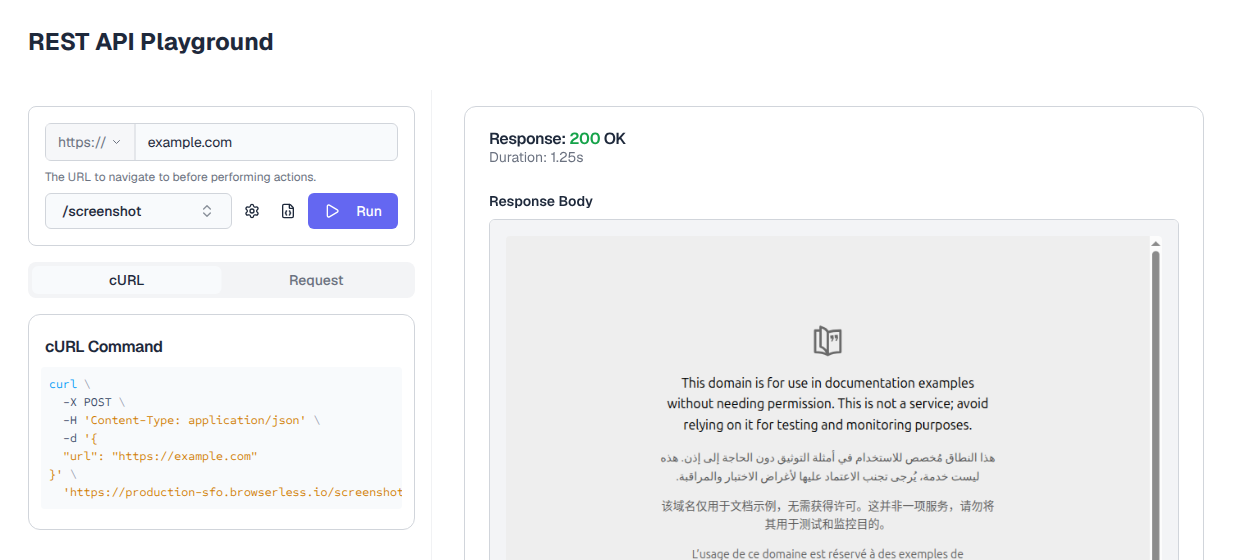
The main interface consists of a URL input field where you enter the target website, an endpoint selector dropdown, and a Run button to execute requests. The response panel on the right displays the API response once you run a request.
For endpoints that accept a URL (like /screenshot or /content), simply enter the target website URL and click Run. The playground automatically constructs the full API request using your account's API token and the selected endpoint settings.
Configuration Options
Click the settings icon to access additional configuration options. You can select the browser type (Chromium, Chrome, or Edge), choose your preferred region (San Francisco, London, or Amsterdam), and configure your API token.
The request body button opens a modal where you can configure advanced request parameters like path parameters, headers, and the full JSON request body. This is useful for endpoints that require complex configurations.
Copying Requests
The playground generates both cURL commands and request summaries that you can copy to your clipboard. This makes it easy to reproduce requests in your terminal or integrate them into your applications. The cURL tab shows the exact command you can run, while the Request tab displays a formatted summary of the request configuration.
FAQ & Troubleshooting
What is the Browserless API Playground?
The API Playground is an interactive tool in the Browserless dashboard where you can build REST API requests, configure parameters, and see live responses without writing code.
Can I test all REST API endpoints in the Playground?
Yes. The Playground supports all Browserless REST endpoints including screenshot, PDF, content, scrape, unblock, and more. You can configure request bodies and see formatted responses in real time.
Does the Playground generate code snippets?
The Playground shows the raw HTTP request you can copy for use in cURL, Python, Node.js, or any HTTP client. This makes it easy to prototype and then integrate into your application.